







Introduction
Mac screenshots are a daily essential whether you’re documenting a bug, creating a tutorial, or sharing a quick visual. This friendly guide walks you through keyboard shortcuts, the built-in Screenshot app, tips for precision, useful third-party tools, and common troubleshooting steps so you can capture and share images quickly and confidently.
Mac screenshot shortcuts
macOS gives you fast keyboard combos to capture full screens, windows, or custom areas. Use these to work quickly without opening extra apps.
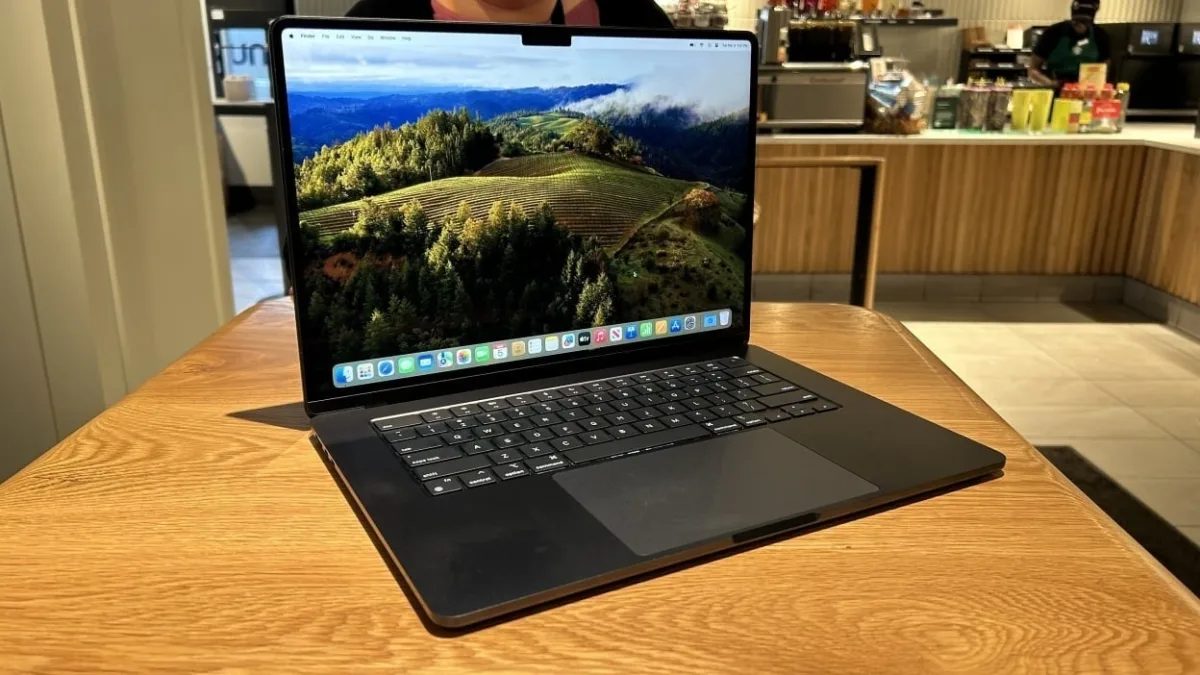
Shift + Command + 3— capture the entire screen and save it as a file.Shift + Command + 4— turn the pointer into a crosshair to select a portion of the screen.Shift + Command + 4, thenSpace— capture a specific window (pointer becomes a camera).Shift + Command + 5— open the Screenshot app for capture and recording options.Shift + Command + 6— capture the Touch Bar (on supported MacBook Pro models).
Quick notes on saving and clipboard
By default screenshots save to the Desktop as PNG files. Add Control to any shortcut (for example Control + Shift + Command + 3) to copy the image to the clipboard instead of saving a file.
Open the Screenshot app and options
Press Shift + Command + 5 to open the Screenshot app. The toolbar lets you choose:
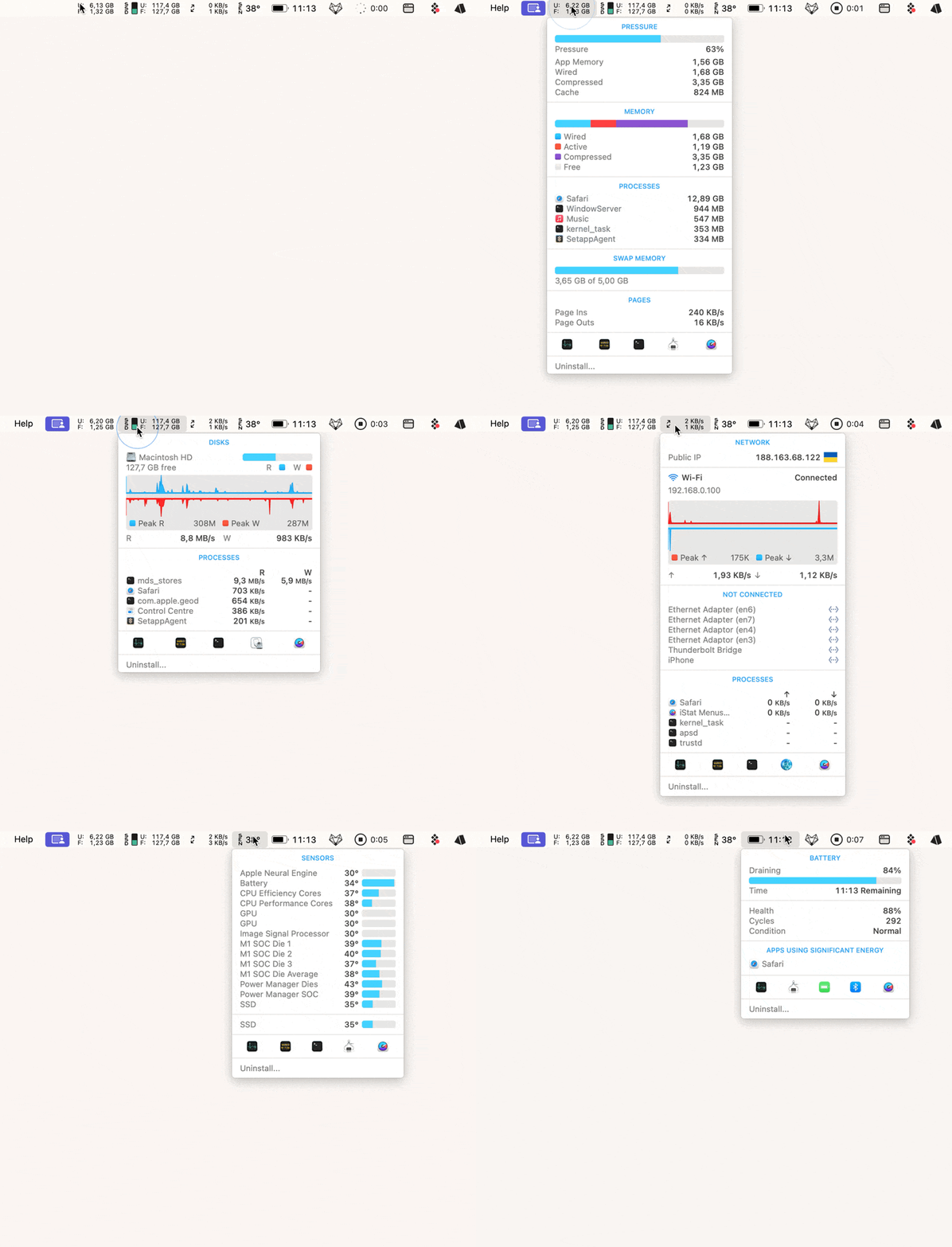
- Capture entire screen
- Capture selected window
- Capture selected portion
- Record entire screen
- Record selected portion
Use Options in that bar to set a save location, enable a timer, or toggle the floating thumbnail preview.
Tips for more precise captures
- Hold Shift to lock one edge while resizing the selection.
- Hold Option to resize from the center.
- Hold Space to move the selection while drawing it.
- Use the timer in the Screenshot app when you need a few seconds to prepare the screen.
Helpful apps and advanced features
If you need annotation, scrolling captures, cloud sharing, or clutter-hiding features, third-party tools add power beyond the native app. Popular utilities offer features like background removal, text recognition, redaction, instant cloud upload, and video annotation. Many of these tools include trial options and subscription plans.

How to edit, name, and share screenshots
Click the floating thumbnail (if enabled) to crop and annotate immediately. Use a dedicated image editor to add arrows, blur sensitive info, or change backgrounds. Rename files with descriptive names to find them later. Share via Mail, Messages, AirDrop, or your preferred collaboration tool.
Where screenshots are saved and how to change it
Default save location is the Desktop. To change it open the Screenshot app (Shift + Command + 5) and pick Options > Save to. Choose a different folder or select Other Location.
Screenshots troubleshooting
Screenshots not showing up
Open Shift + Command + 5 and check Options to confirm the save location. If Finder isn’t refreshing the Desktop, relaunch Finder or restart your Mac.
Shortcuts not working
First check your keyboard input in any text app. If keys respond, verify shortcuts at System Settings > Keyboard > Keyboard Shortcuts > Screenshots. Restarting or reconnecting external keyboards can also help.
Black or blocked screenshots
Some apps (streaming services, banking apps, certain meetings) block screenshots for security and copyright reasons. This is expected behavior and there’s usually no legal bypass.
Best practices for screenshots others will love
- Avoid full-screen captures when unnecessary—focus on the relevant window or area.
- Add annotations to show clicks or steps clearly.
- Crop and remove distractions to keep visuals clean.
- Blur or redact private information before sharing.
- Use descriptive filenames so screenshots are easy to find later.
Conclusion
Whether you rely on native shortcuts or a third-party app, mastering Mac screenshots saves time and makes your documentation clearer. Practice the shortcuts, experiment with the Screenshot app options, and adopt a simple workflow for editing, naming, and sharing so your captures are useful and professional.